EPEDGARPREMIERThe filing experts
SEC reports, Word to Inline XBRL

Tag your SEC filing in Inline XBRL, and file only what you have seen.

EDGAR Premier is an editor for SEC filings, made for the tagger and the reviewer who are finishing a real filing.

One product, two jobs: prepare the EDGAR document, then tag it in Inline XBRL and build the package.

Built for typesetting-grade EDGAR documents, not a plain Word-to-HTML converter.

The report open in the editor: the cursor in the balance sheet, its table's properties in the Inspector, the HTML source below.
Job 1

EDGAR document editor

Open your Word or HTML report and get it EDGAR-ready.

  • Financial tables tidied in one dialog; signature tables built for you.
  • Table of contents links set up in one click.
  • Headers, footers, images and page breaks.
  • A document scan that finds and fixes common typing issues.
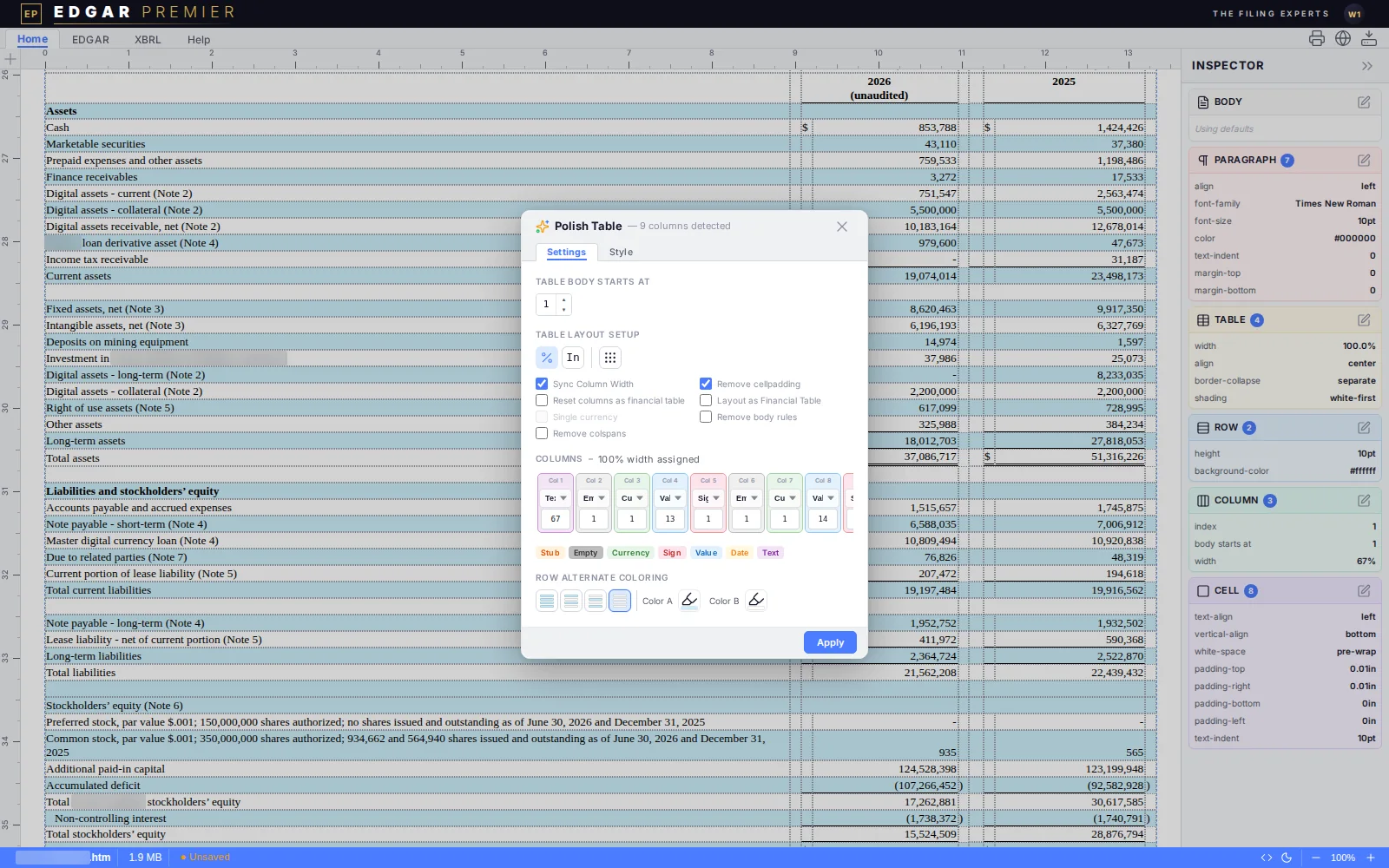
Polish Table open over the balance sheet's table.
Polish Table open over the balance sheet's table: the columns it found, each with a type you can change.
Job 2

XBRL tagging and filing

The system proposes. You confirm.

The system proposes.

Select a section and it proposes the tags, with the evidence for each.

You confirm in one press.

Accept a proposal, or change it. Anything the system can't tag is listed for you.

Nothing changes silently.

Nothing a company filed before, and nothing you chose, is changed or filed without your confirmation.

  • Cover page and balance sheet tagged for you, section by section.
  • Balance sheet totals checked to add up, with one-press fixes.
  • A filing package validated with the SEC's own rules, ready to download.

Today the system tags the cover page and the balance sheet for you. The other sections you tag by hand.

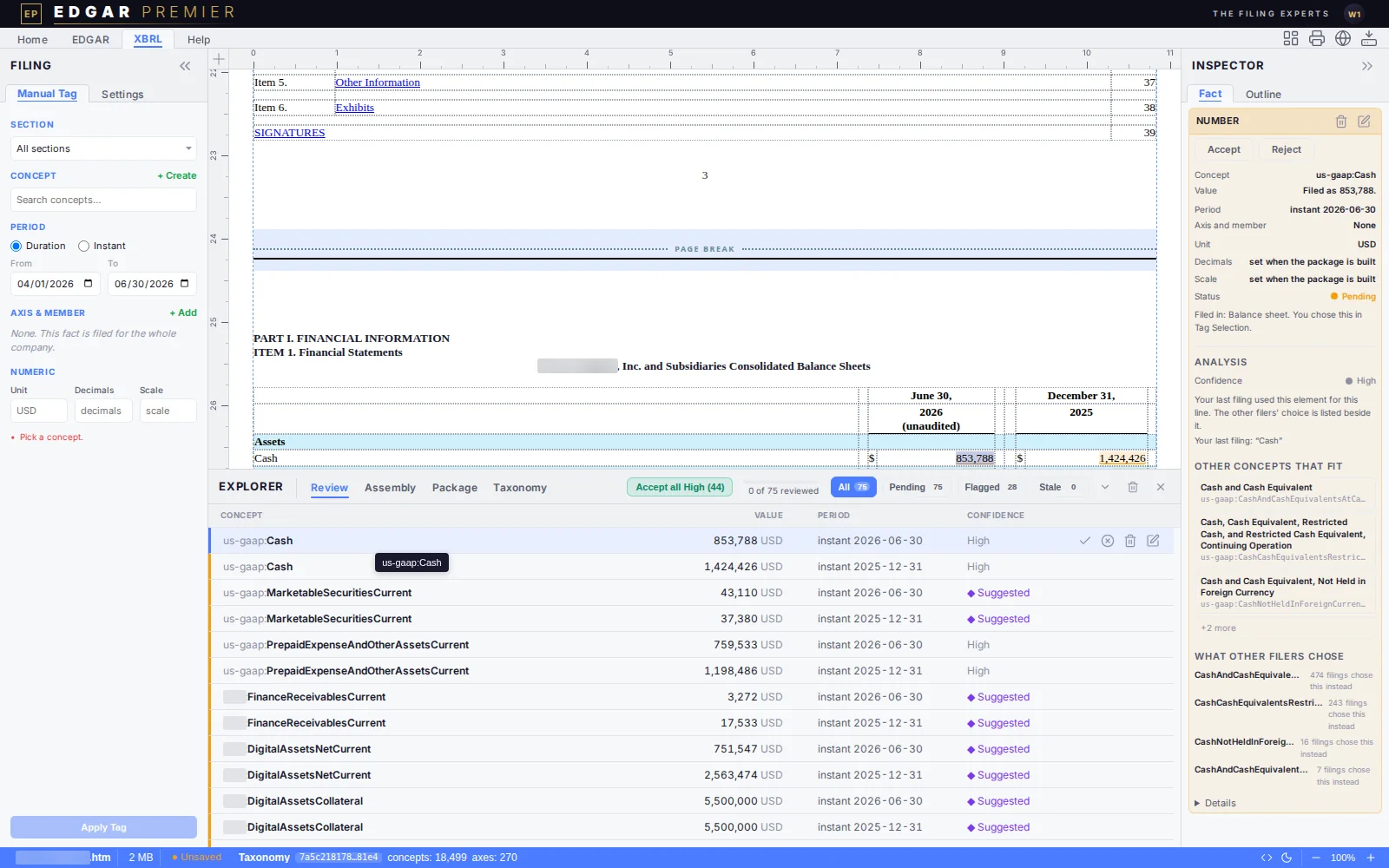
The Review tab lists every proposed tag; the card on the right shows the first one with its reason.
The Review tab lists every proposed tag; the card on the right shows the first one the way it will be filed, with its reason and the other elements that fit.
The showcase

See how it works

Seven steps, one picture each: two to prepare the EDGAR document, five to tag it and build the package. Press Next and Previous, or the arrow keys. Click a picture to see it full size.

EDGAR document editor

XBRL tagging and filing

The seven steps follow in the EDGAR and XBRL tabs, each with its picture.

Where it stands

Today and next

EDGAR accepting a filing doesn't prove every number is tagged right, so the system also checks that totals add up and that each tag matches what the page says.

EDGAR document editor

Available today

  • Open Word or HTML files and export clean, EDGAR-ready HTML.
  • Financial tables tidied in one dialog; signature tables built for you.
  • Table of contents links set up in one click.
  • Headers, footers, images and page breaks.
  • A document scan that finds and fixes common typing issues.

On the roadmap

Planned. Not available yet.

  • LaTeX-grade typesetting: print-quality documents from the same source as the EDGAR HTML.
  • Stronger sign-in controls.

XBRL tagging and filing

Available today

  • Cover page and balance sheet tagged for you, section by section.
  • Every proposal shows its reason; you confirm it in one press.
  • Your company's own elements and members reused from your last filing.
  • Balance sheet totals checked to add up, with one-press fixes.
  • A filing package validated with the SEC's own rules, ready to download.
  • Hand tagging with search, for anything left over.

On the roadmap

Planned. Not available yet.

  • Income statement, cash flow, equity statement and notes, each with its own checks.
  • Notes and accounting policies tagged as text blocks.
  • Schedules and required disclosures, such as cybersecurity and insider trading.
The document editor

Built for EDGAR documents

An EDGAR document is typeset: its columns, rules, page breaks, fonts and tags all have to be right. The editor is built for that work. Opening a Word file is only where it starts.

Financial tables, polished by their columns

Press Polish Table and the editor reads the columns, shows what it found, and applies your choices with one Apply. Each column gets a type you can change: Stub, Empty, Currency, Sign, Value, Date or Text. It puts a closing bracket or percent sign into its own sign column.

Signature tables

Select the signature block and press Convert to Signature Table. The editor reads who signs and lays it out: the company line, the signer, By, Name, Title and Date.

Contents links, wired

Put the cursor in your contents table and press Wire TOC Bookmarks & Links. Each contents row is matched to its heading, even when the row says “Risk Factors” and the heading says “Item 1A. Risk Factors”.

Page breaks, headers and footers

Insert an EDGAR page break, then open its properties to set the section, page numbering, header and footer, with separate versions for odd and even pages.

A scan for common errors

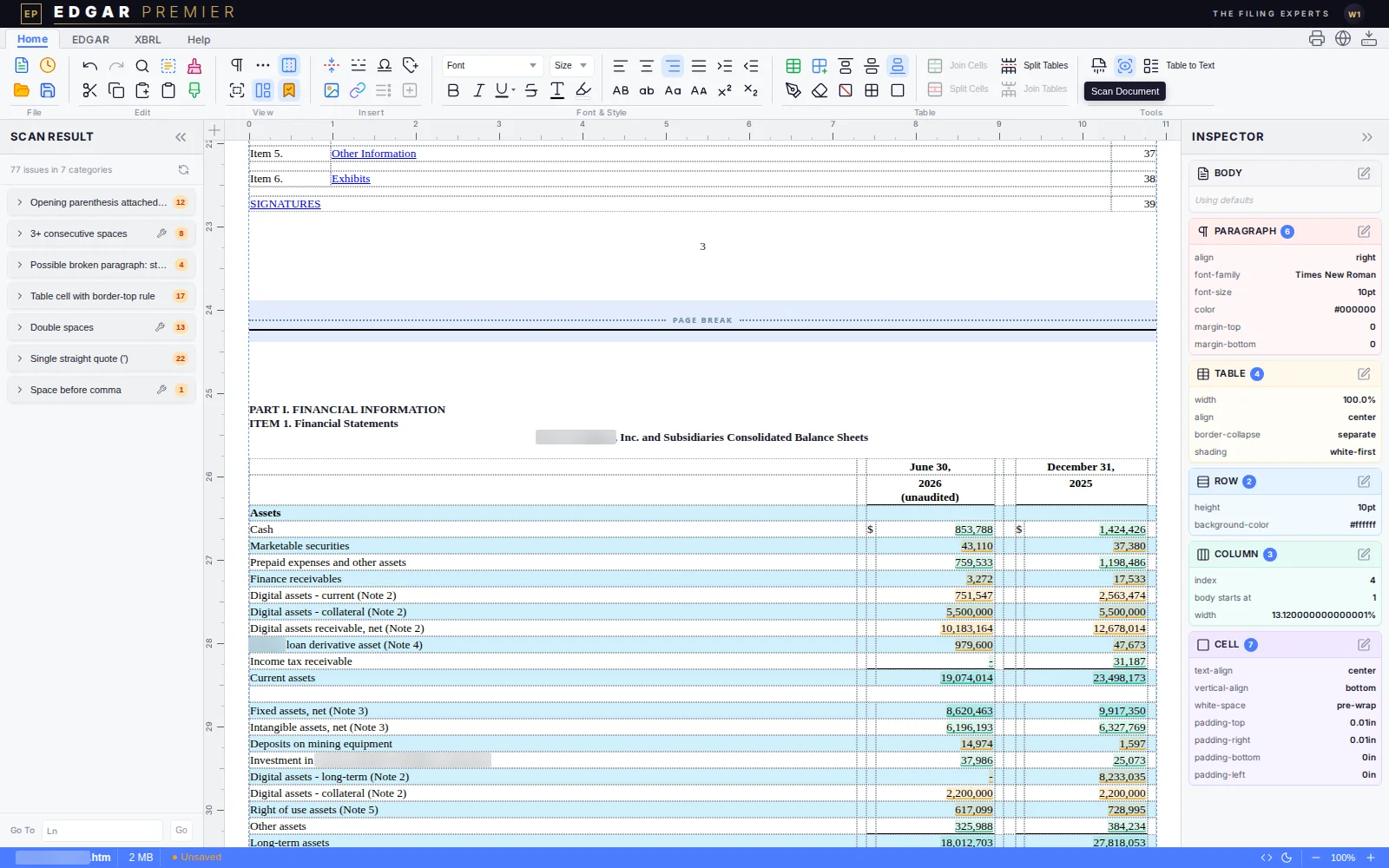
Scan Document lists what it found, grouped by kind, with a Go To for each. Where there is an automatic fix you press Fix, or Fix all for a group.

Clean, EDGAR-ready HTML out

Press Export and the file is named after your document with “_edited.htm”. Tags are written in lower case, and the parts of an HTML report you did not edit are saved back exactly as they were. Fonts and styles are limited to ones EDGAR allows.

The scan panel listing 77 issues in 7 categories beside the document.
The scan panel lists what it found, grouped by kind: 77 issues in 7 categories. Scan Document is in the ribbon's Tools group.
The process, steps 1 and 2

How you work, step by step

One filing, from the report to a package checked by the SEC's own software.

Step 1

Open your report

Press Open and choose your .docx, .doc, .html or .htm file. Word files are converted to HTML for you, set up for filings.
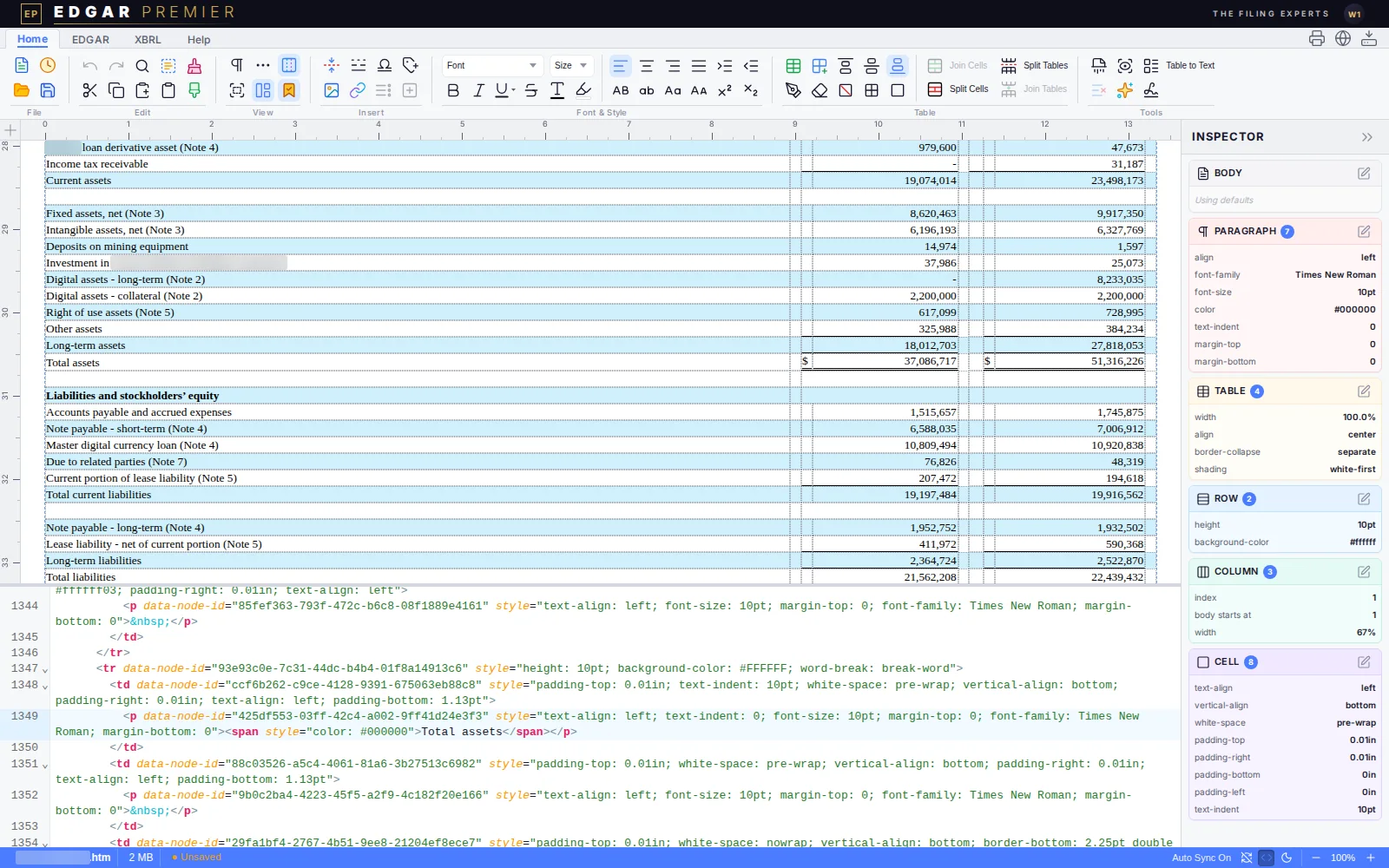
The report open in the editor: the cursor in the balance sheet, its table's properties in the Inspector, the HTML source below.
Step 2

Polish it as an EDGAR document

Put the cursor in a financial table and press Polish Table. The editor reads the columns, shows what it found, and applies your choices with one Apply. Signature tables, contents links and a document scan have their own buttons.

Polish Table open over the balance sheet's table: the columns it found, each with a type you can change.
The process, steps 3 to 7

How you work, step by step

Step 3

Set the filing's details

Tell it about the filing once. The Settings tab holds what every tag depends on: the taxonomy profile, the company, the period and the accounting choices. Tagging starts when the required fields are filled in.
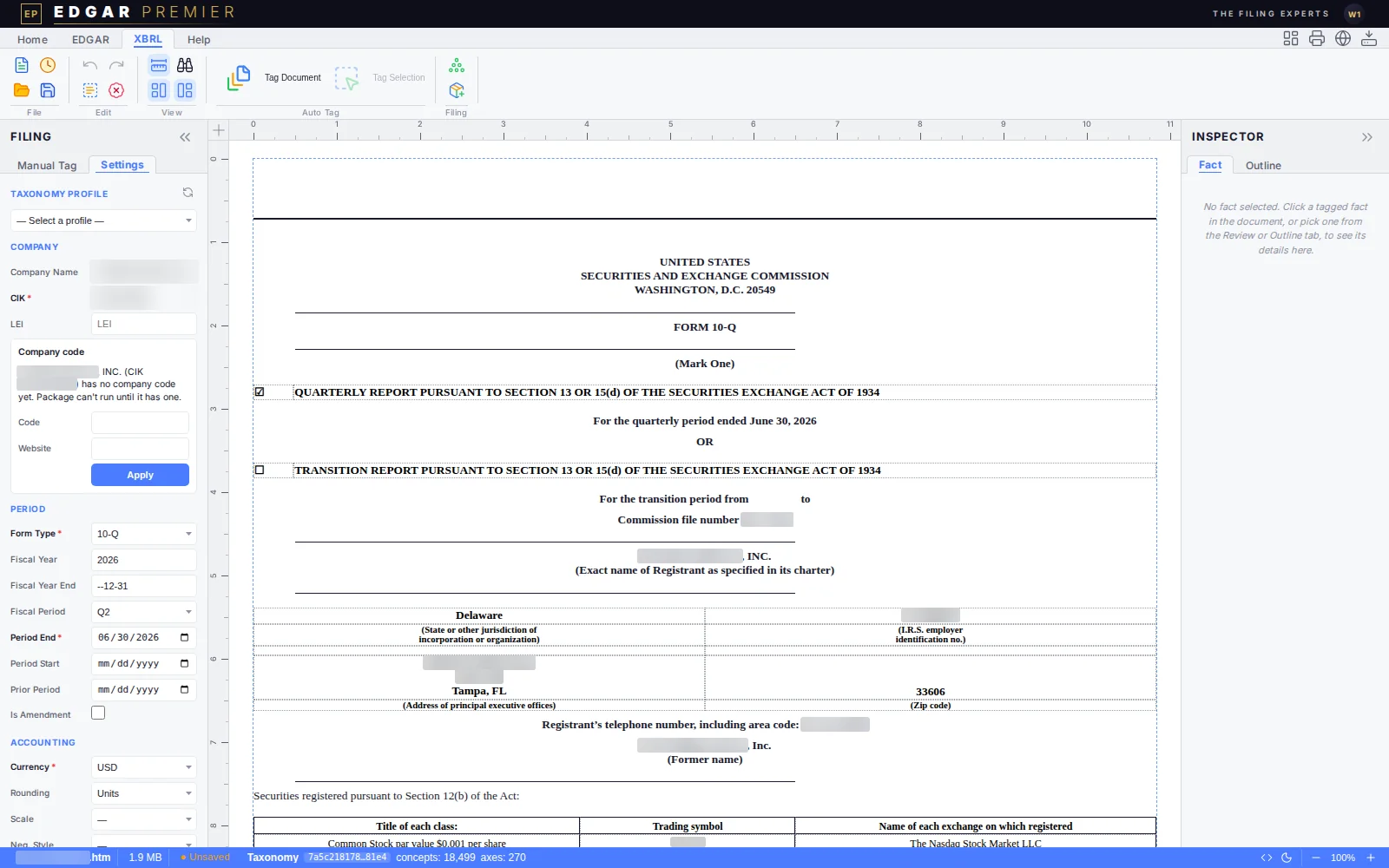
The Settings tab of the Filing panel: the taxonomy profile, the company, the period and the accounting choices.
Step 4

Tag it, section by section

Select part of the document and press Tag Selection. First you say which section you are tagging, so the proposals fit it. Today the system tags the cover page and the balance sheet for you; you tag the other sections by hand. When it finishes you see what was tagged and how many places are left for you, each with its reason. Proposals are written as pending: nothing becomes part of the filing until you accept it.
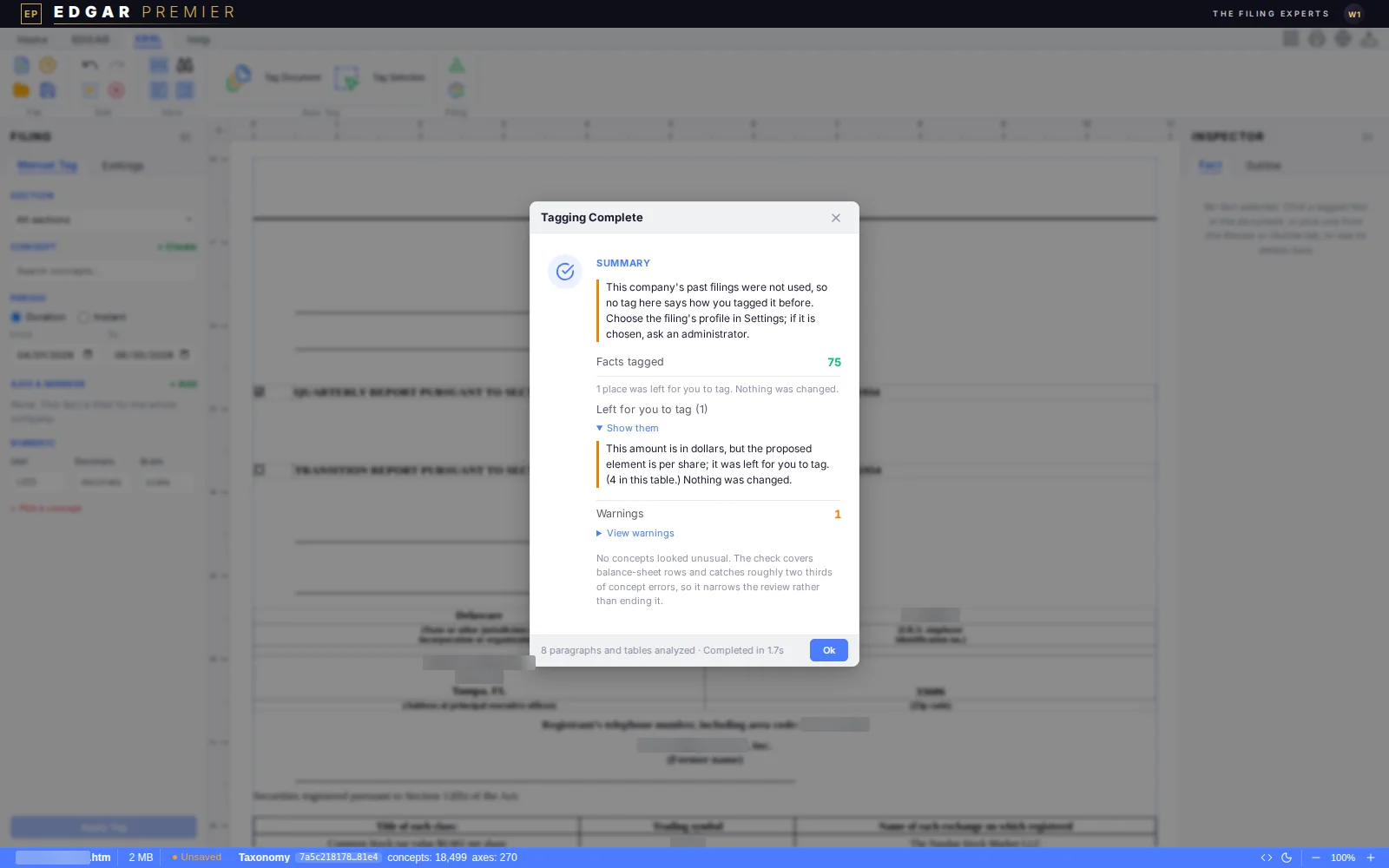
After Tag Selection on the balance sheet: 75 facts tagged, and 1 place left for you to tag, with its reason.
Step 5

Review each proposed tag, with its evidence

Review lists every proposed tag with its element, value, period and how sure the system is. Click a number and its card shows the number the way it will be filed, where the proposal came from, and how other filers tagged the same line. Accept or change each one in one press.

The Review tab lists every proposed tag; the card on the right shows the first one the way it will be filed, with its reason and the other elements that fit.
Step 6

Fix what is flagged

Press Assemble, the check that runs before the package is built. It lists what is wrong or still waiting for you. Each note says that nothing was changed and what to do next, with a button where there is one.
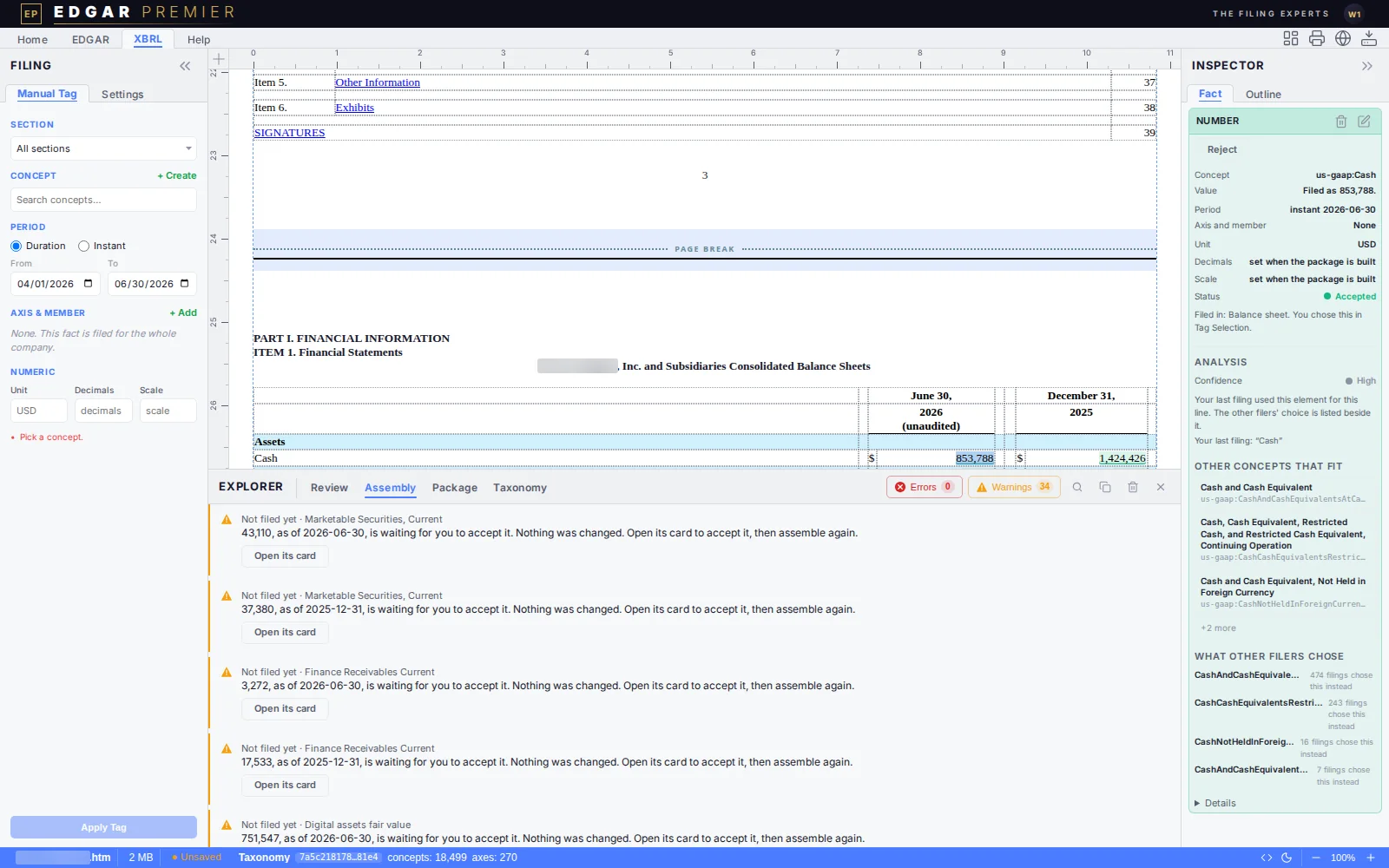
The Assembly tab: facts not filed yet are listed, each with an Open its card button.
Step 7

Build and validate the package, then download it

Press Package and the filing package is built and checked with Arelle and the SEC's EDGAR validation plugin before you download it. The verdict is one line, with the counts of facts, errors and findings. Download the package. When every part of the report is tagged, it is ready to file; until then the package says what is still left to tag. Sending it to the SEC is done outside this product.
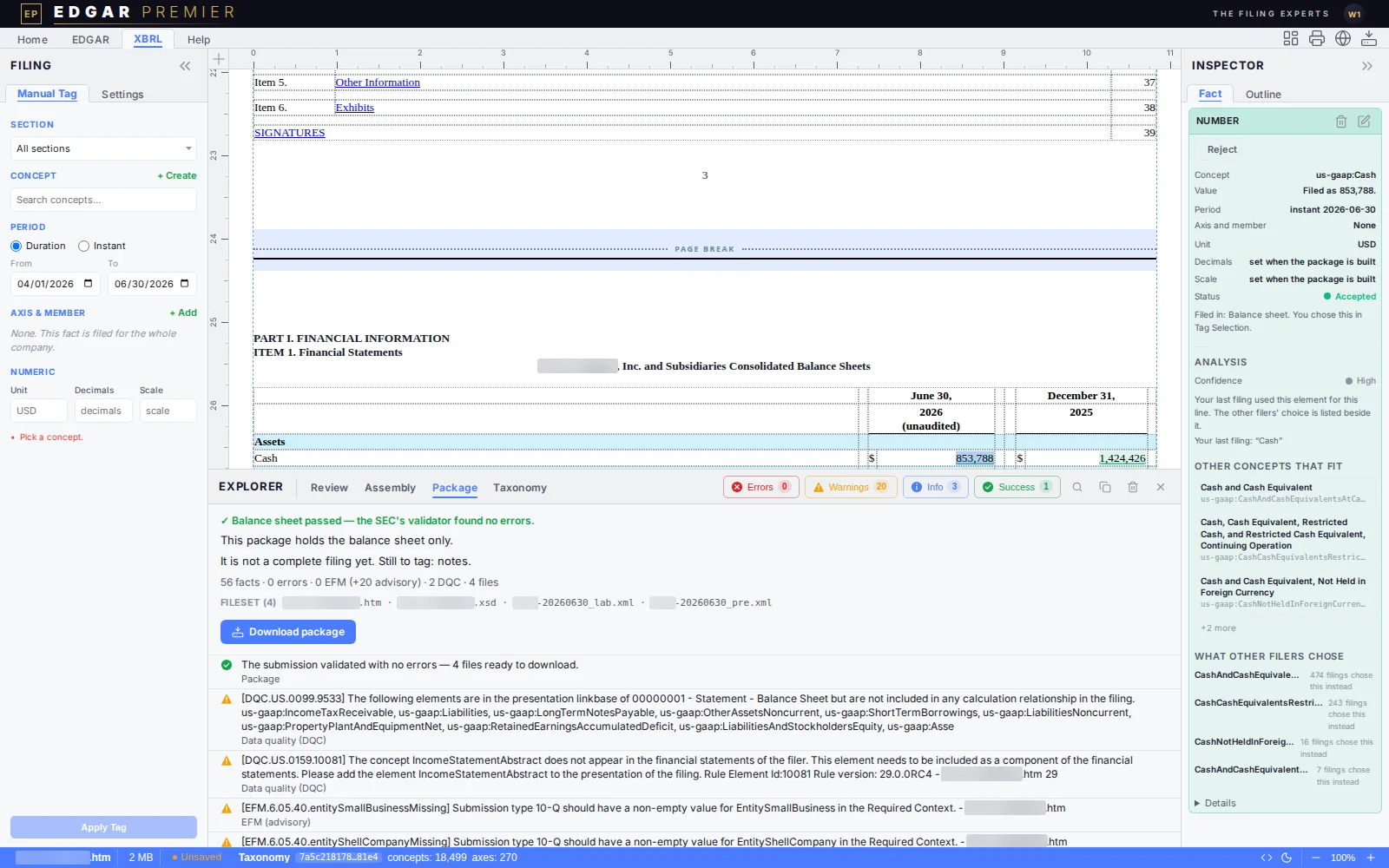
The Package tab after a build: the verdict, what the package holds and what is still to tag, the counts, and Download package.
The reviewer's desk

The Explorer panel, tab by tab

The Explorer is the reviewer's desk, along the bottom of the editor. Four tabs take a filing from “proposed” to “ready to download”.
  • Review. Every proposed tag is listed with its element, value, period and how sure the system is. Accept or change each one in one press.
  • Assembly. The check that runs before the package is built. It lists what is wrong or still waiting for you, with the answer as a button.
  • Package. The package is built and checked with the SEC's own validator before you download it.
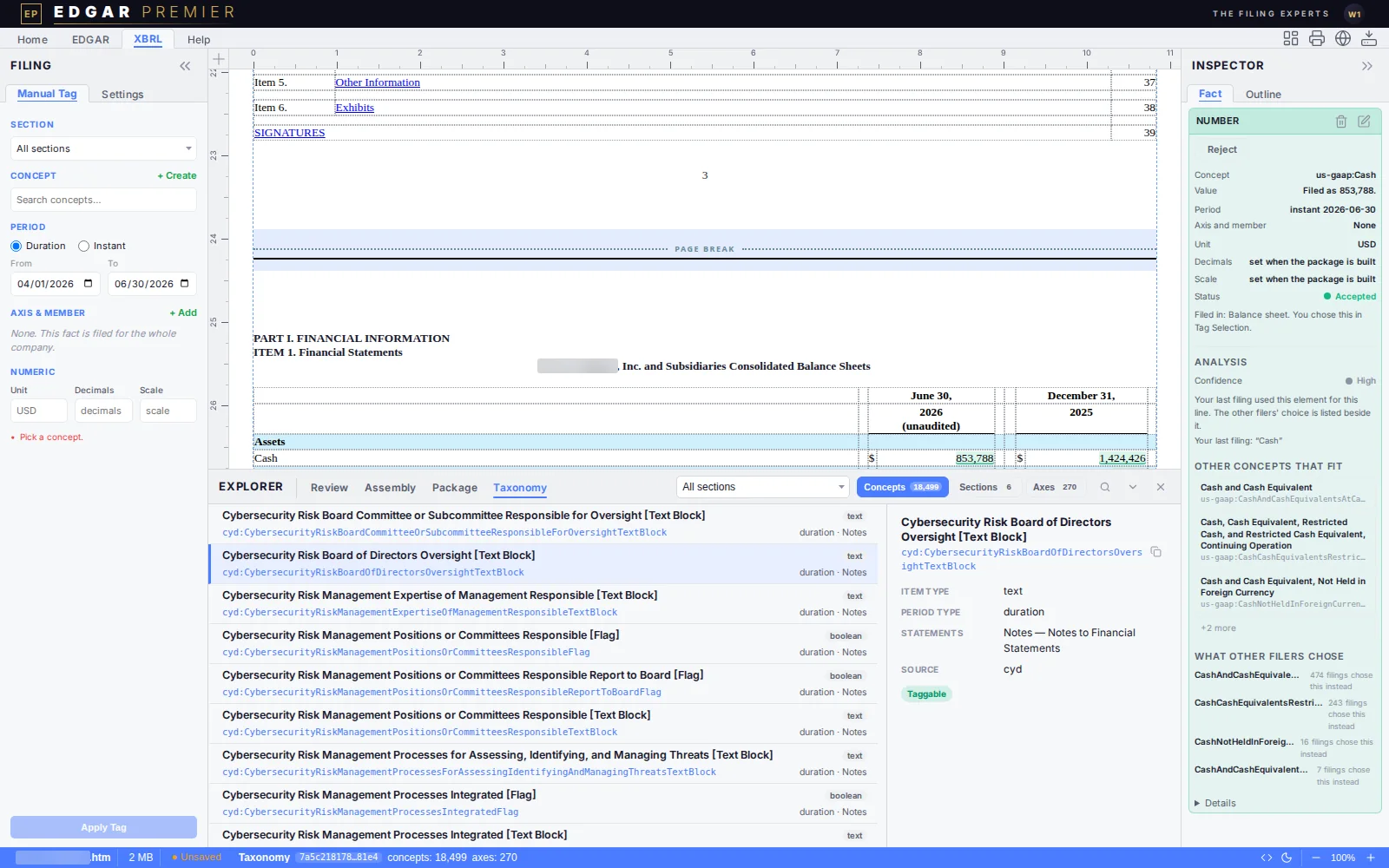
  • Taxonomy. A read-only list of the elements your taxonomy profile lets you tag with. Search it, and select one to see what it is.
The Explorer on its Taxonomy tab: the concept list with one concept pressed.
The Taxonomy tab: the 18,499 concepts you can tag with, and the detail of the one pressed: its type, period type, statements and source.
Checks before filing

Balance sheet totals

The system checks that each total on the balance sheet adds up from its lines. Where the page makes a total's lines clear, the system proposes them; you confirm them or choose others.

A total that waits for you

Each total that does not add up gets one card. It names the lines, shows for each date the total, its lines and the gap, and says what is wrong and that nothing was changed. Where a row of the total prints an amount with no tag, it says so: “Tag the amount on that row, then assemble again.”
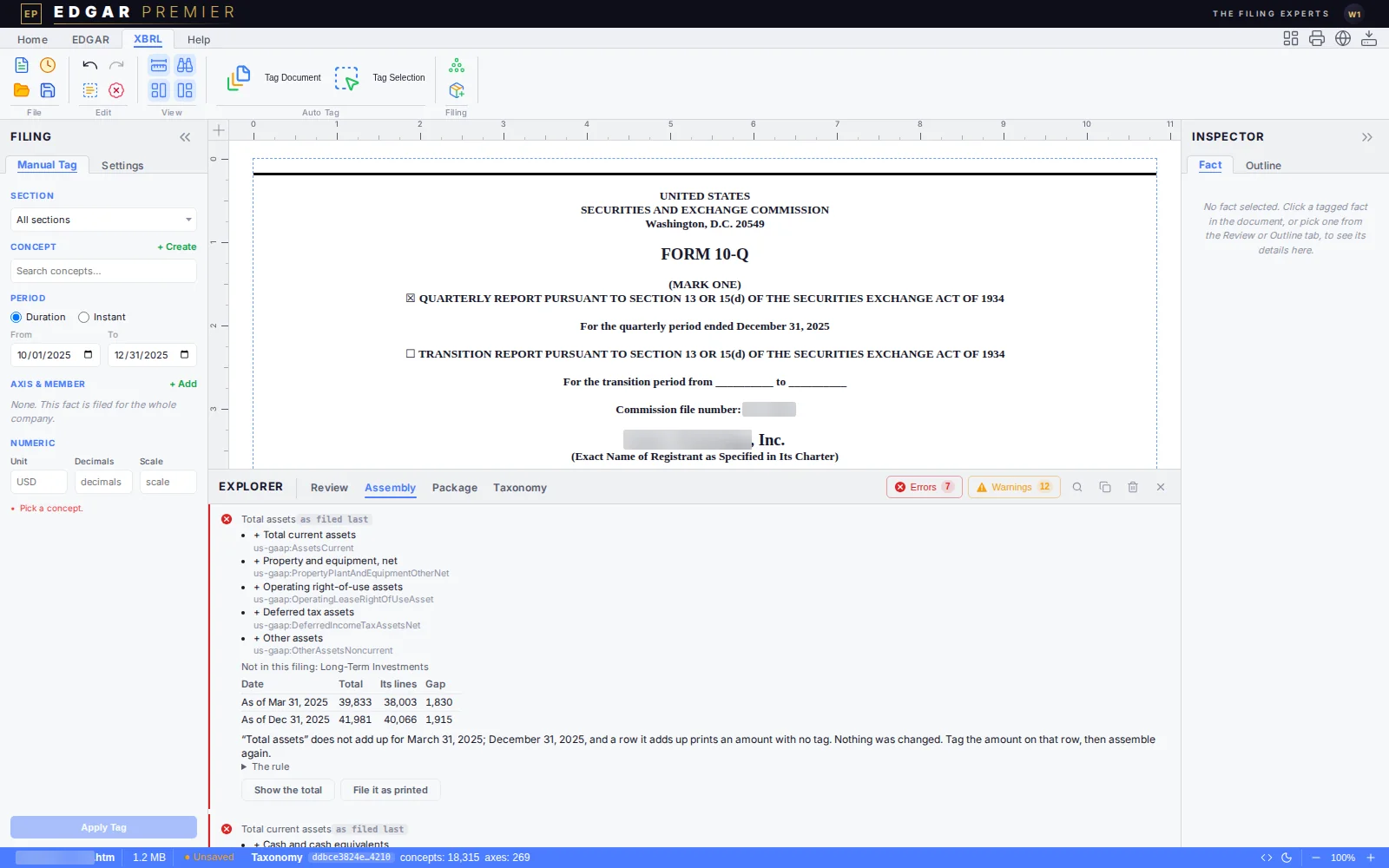
The Assembly tab at a total that does not add up, with its lines, a table of dates, totals and gaps, and the buttons Show the total and File it as printed.
A total that does not add up: its lines, the amounts that are not in this filing, a table of each date's total, its lines and the gap, and what to do. Show the total and File it as printed are the ways out.

A gap that stops

A gap that is not within rounding stops the package until you decide: correct the amount, choose the lines that make up the total, or file it as printed. A few cases only warn, and the card says which.
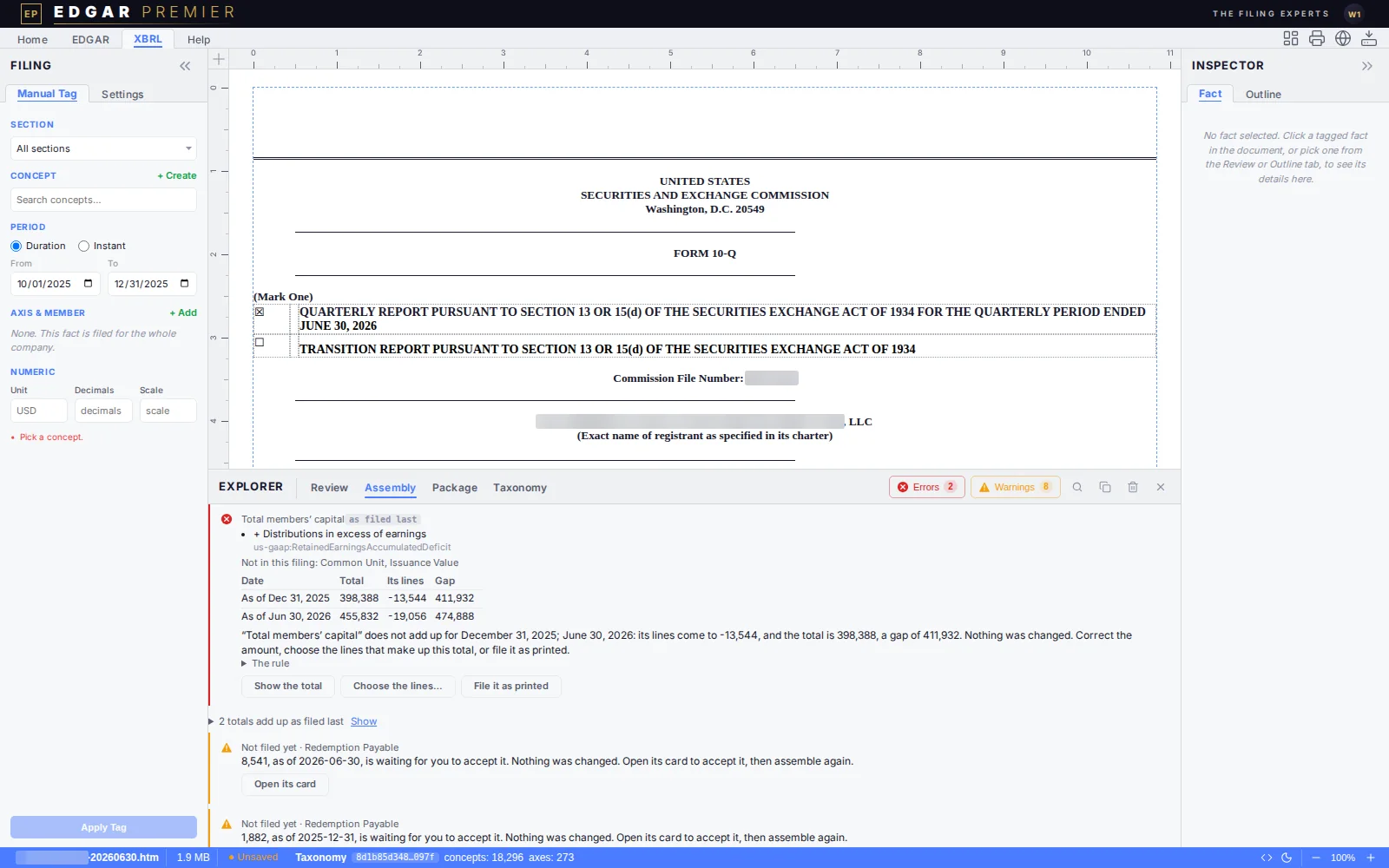
A card for Total members' capital whose lines come to -13,544 against a total of 398,388, a gap of 411,932, with the buttons Show the total, Choose the lines and File it as printed.
A total whose lines do not add up: “its lines come to -13,544, and the total is 398,388, a gap of 411,932.” Nothing was changed, and the card offers Show the total, Choose the lines… and File it as printed.

Choose the lines yourself

Choose the lines… opens the rows printed on the balance sheet, each with its amounts for each date. Rows that are not tagged yet are marked “Not tagged yet”. Tick the rows printed under the total and press Use these lines. Nothing is added up there: Assemble, the check before the package, checks the lines on its next run.
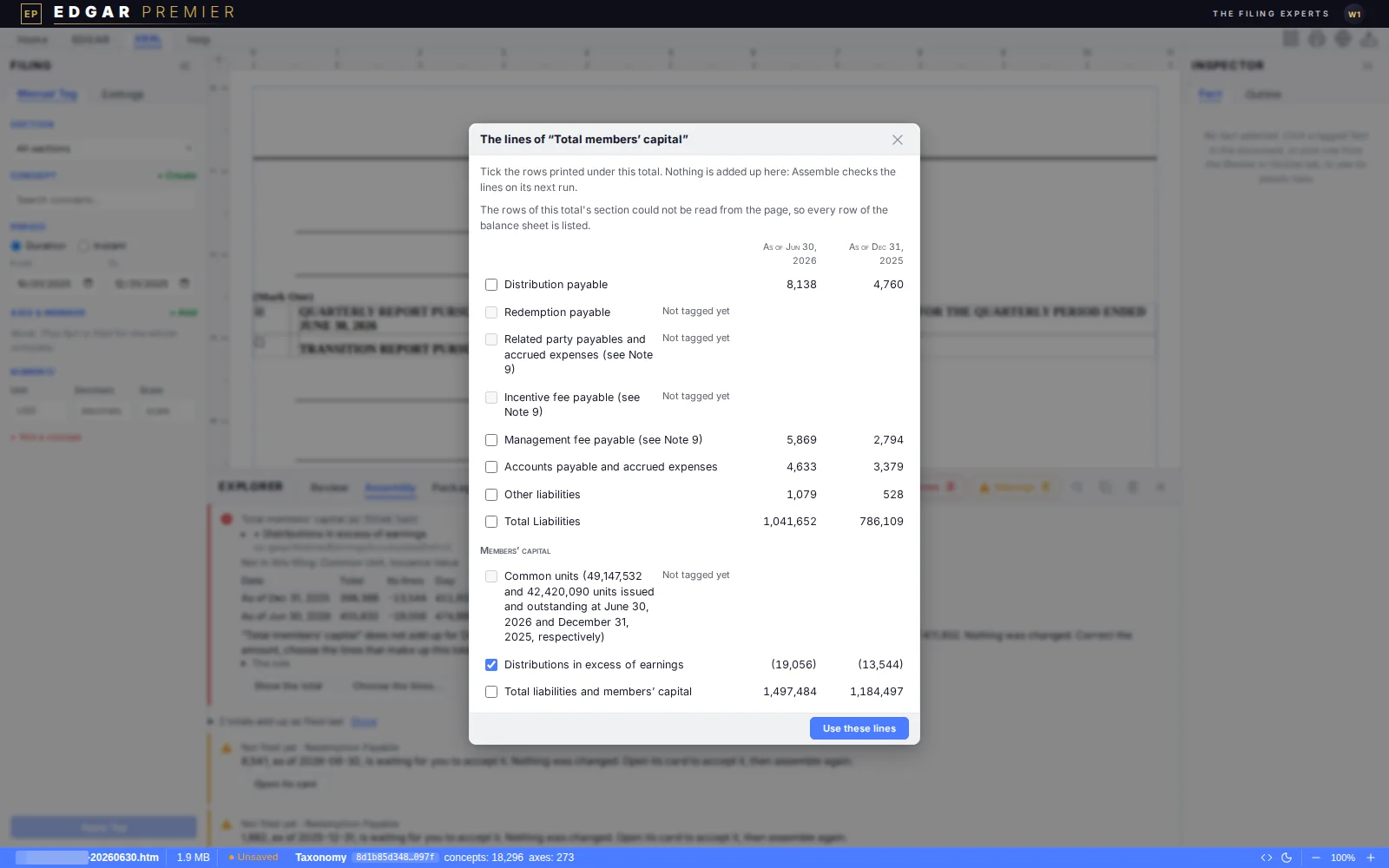
The dialog The lines of Total members' capital with the balance sheet's rows, their amounts and a Use these lines button.
The dialog for the lines of a total: the rows printed on the balance sheet with their amounts for each date, and Use these lines.

Your choice is kept

Your answer is kept with the document, and Undo takes it back. Assemble checks it again: here the chosen line does not fill the gap, so the card still shows it.
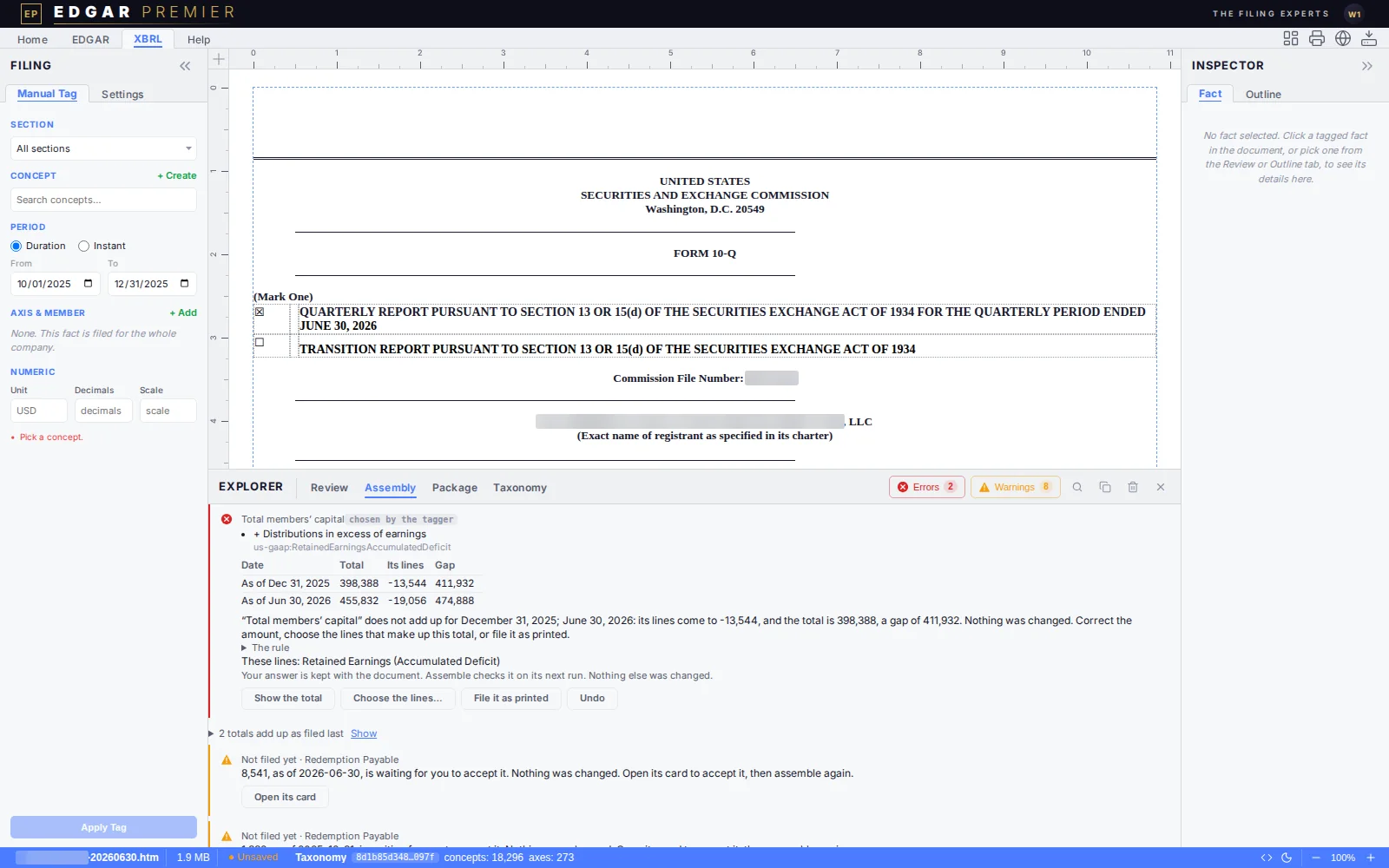
The card for Total members' capital marked chosen by the tagger, with its chosen line, the words Your answer is kept with the document, and an Undo button.
A total whose lines the tagger chose, kept with the document, with Undo.

A gap within rounding only warns. A proposal waits for your press: the package is not built until you confirm the lines or choose others. These checks cover the balance sheet today. The other statements are on the roadmap.

Taxonomies

Taxonomy Management Platform

A separate Taxonomy Management Platform opens from the top bar. It holds the standard taxonomies by year, and each company's own taxonomy built from its last filing, with versions, builds and an audit trail.

Company taxonomies, built from filings

Company-specific taxonomies from filings. Upload a filing to add one — it takes effect right away.
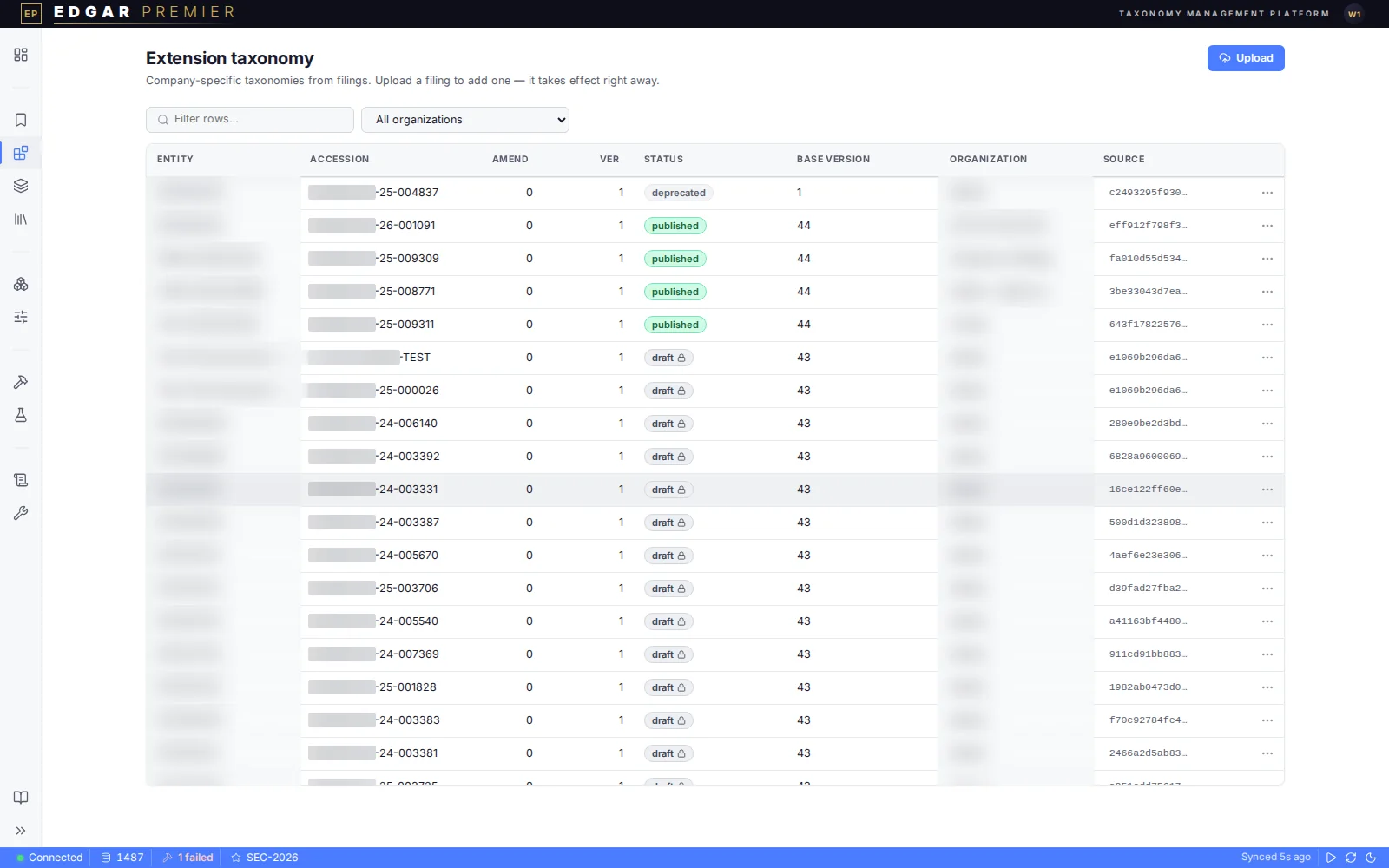
The Extension taxonomy page of the Taxonomy Management Platform: a list of company taxonomies, one row for each filing, with company names blurred.
The Extension taxonomy page: the company taxonomies built from filings, one row for each filing, with its version, status and base version. Company names are blurred.

Profiles

Each profile points at a taxonomy. The default is used whenever nothing else is chosen. The profile you pick in Settings sets the taxonomy version and your company's own taxonomy.
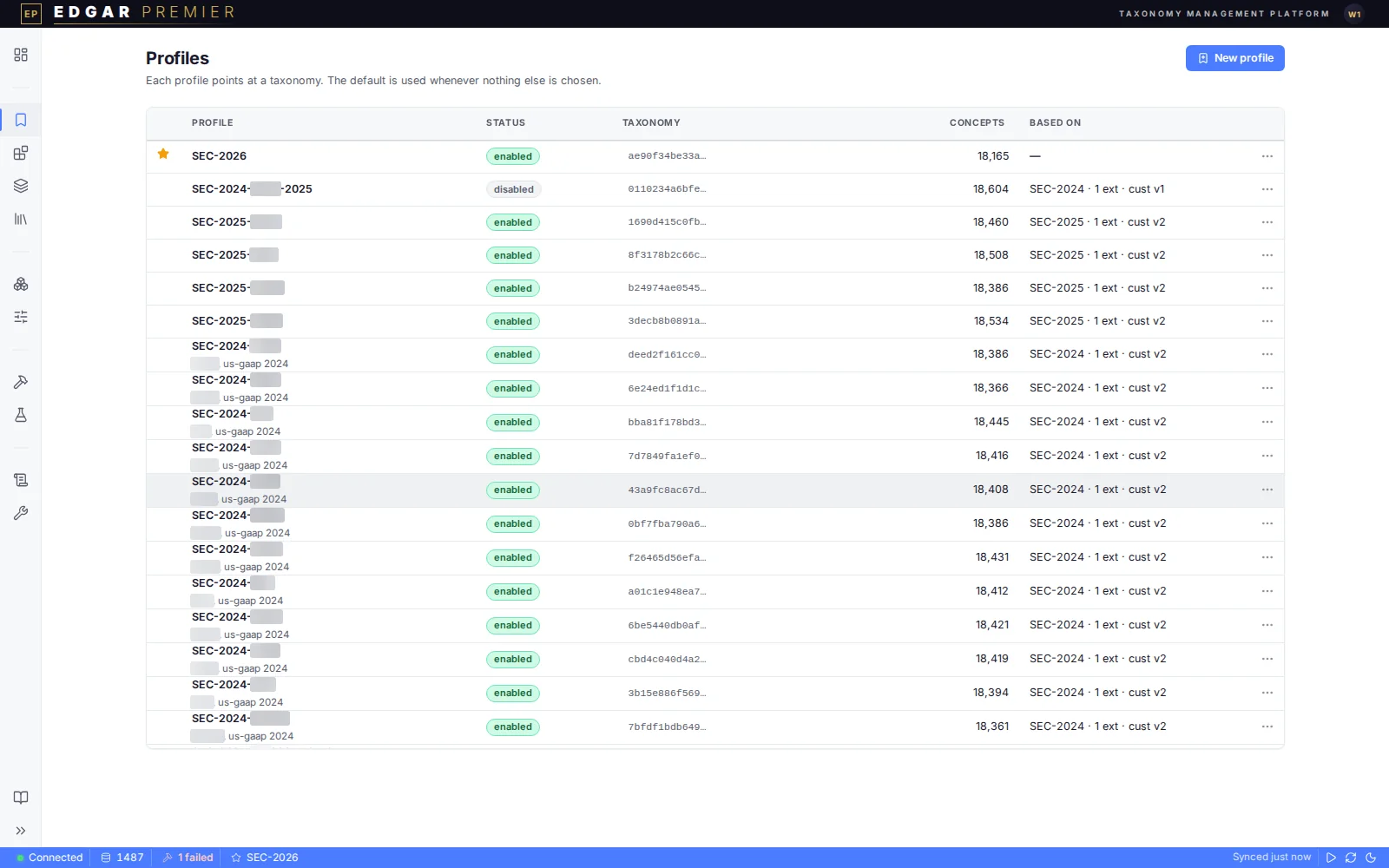
The Profiles page of the Taxonomy Management Platform: profiles with their status, taxonomy, number of concepts and what each is based on; the default is starred.
The Profiles page: each profile with its status, its taxonomy, the number of concepts and what it is based on. The default profile has a star.

Base taxonomy

The standard SEC taxonomies you have uploaded, grouped into complete versions. Adding a version takes four steps, for administrators: Upload files, Create a version, Build, Create profile.
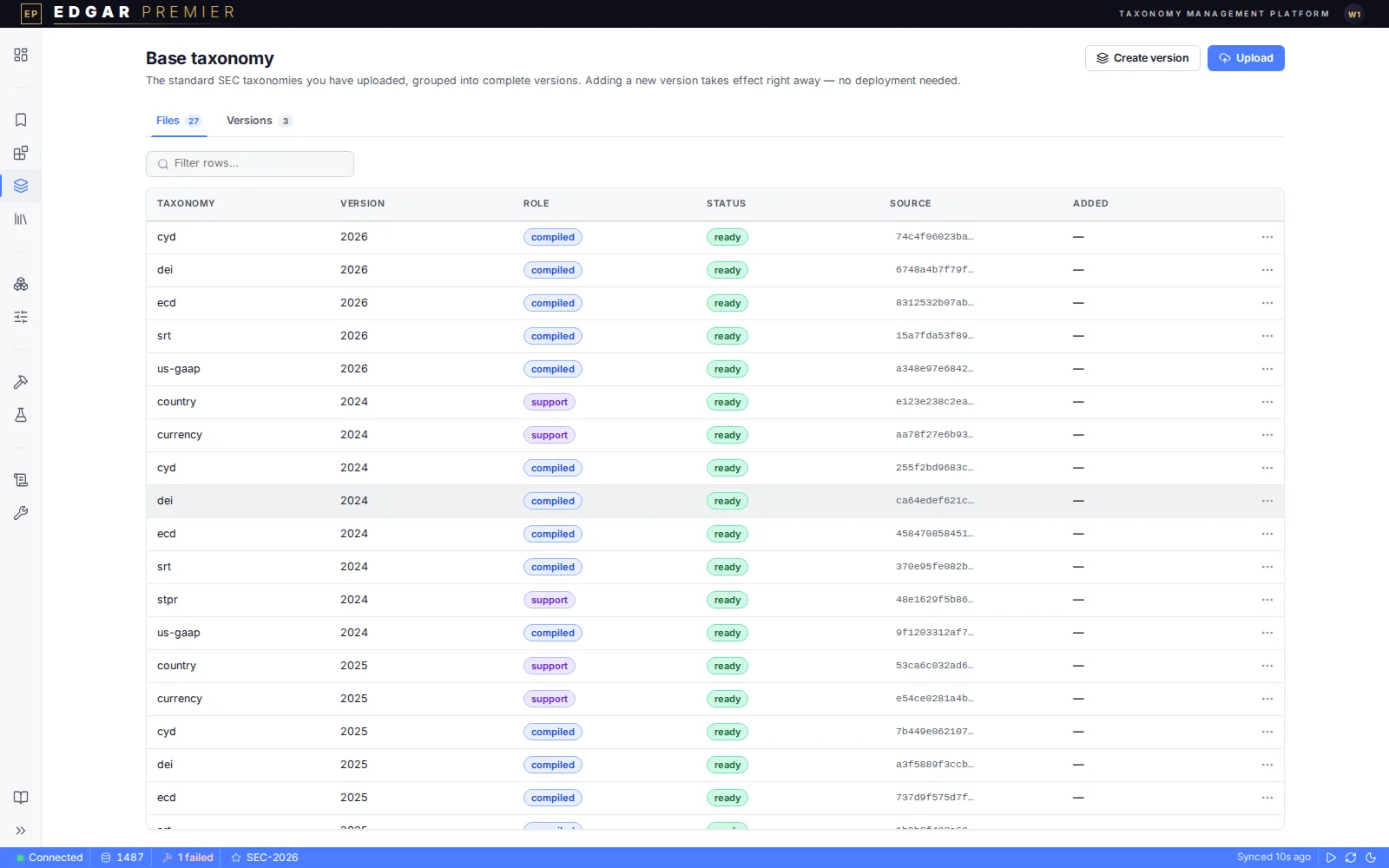
The Base taxonomy page of the Taxonomy Management Platform: the Files tab listing standard taxonomy files by year, role and status.
The Base taxonomy page: the standard SEC taxonomies by year, each file with its role and status. The Versions tab groups them into complete versions.